
How to Set Up a Googlebook
To set up a Googlebook, charge it, press the power button, and follow the on-screen steps: pick a language and region, connect to Wi-Fi, choose For myself or For my child, accept Google terms, sign in with your Google Account, and set up face unlock, fingerprint, a PIN, or a pattern. A first software update can take around 15 minutes.
Key takeaways
- You need three things before you start: the charger, your Wi-Fi name and password, and a Google Account. You can create a Google Account during setup if you do not have one (Google, November 2026).
- Quick Start is the fastest path: scan the QR code with your phone and it copies your Wi-Fi and Google Account automatically. With an Android phone it signs you in; with an iPhone or iPad you still sign in by hand (Acer, updated November 4, 2026).
- There is no offline or local account option. A Google Account is strictly required to complete setup (Acer, updated November 4, 2026).
- Your files move by cloud sync or by USB flash drive, but Windows .exe and Mac .dmg programs do not transfer and do not run natively on a Googlebook (Acer, updated November 4, 2026).
- The first software update can take around 15 minutes. Keep the laptop plugged in and wait it out (Google, November 2026).
How we wrote this. We have not tested any Googlebook. This guide is based on official documentation with credit: Google’s official setup guide and Wi-Fi help page, Acer’s setup guide, and Dell’s Googlebook OS support page. Every step is credited to a named source. Do not follow a Chromebook setup guide for a Googlebook: Chromebooks allow Guest mode and do not require a Google Account, while Googlebook setup strictly requires one, per Acer.
Table of Contents
What you need before you start
Setup takes only a few minutes once you have three things ready, according to Google and Dell. Gather them before you press the power button, and you will not have to stop halfway through.
| What to have ready | Why you need it | Source |
|---|---|---|
| The charger that came in the box, plugged into a power outlet | Setup may include a first software update that takes around 15 minutes, and the laptop must not run out of power during it | Google, November 2026 |
| Your Wi-Fi network name and password | The device needs to connect to the internet to complete setup | Google, November 2026 |
| A Google Account, or time to create one during setup | You need an active Google Account to sign in and personalize the device | Google, November 2026 |
| Your phone nearby, with Bluetooth on (only if you use Quick Start) | Quick Start scans a QR code with your phone to copy Wi-Fi and your Google Account automatically | Acer, updated November 4, 2026 |
| Your old computer and a USB flash drive (only if you move files by hand) | Files can be copied to a USB drive from a Windows PC or Mac and pasted into the Googlebook Files app | Acer, updated November 4, 2026 |
Sources: Google, “Set up your Googlebook”, November 2026; Acer Community, “How to Set Up Your Acer Googlebook”, updated November 4, 2026. If you are setting up the laptop for a child, have the child’s account details ready too, since you choose who uses the device during setup (Google, November 2026).
Quick Start vs manual setup: which should you choose?
Google’s setup screen offers two paths. Quick Start, labeled “Set up using another device”, copies your Wi-Fi network and Google Account from your phone. Manual setup means you type everything in yourself. Both end in the same place, so pick the one that matches the phone in your pocket.
| Method | How it works | Best for | What you need |
|---|---|---|---|
| Quick Start with an Android phone | Scan the on-screen QR code with your phone camera. The Googlebook connects to your phone’s Wi-Fi network and signs into your Google Account automatically. If you have more than one account on the phone, pick the one you want. | Android users who want the fastest setup | Phone nearby, Bluetooth on, Wi-Fi connection (Acer, updated November 4, 2026) |
| Quick Start with an iPhone or iPad | Scan the on-screen QR code, then connect to Wi-Fi and sign into your Google Account by hand. The QR code starts the flow, but it does not sign you in automatically. | iPhone and iPad users | Phone or tablet nearby, Bluetooth on, Wi-Fi name and password (Acer, updated November 4, 2026) |
| Manual setup (select Skip) | Select Skip at the “Set up using another device” screen, then type in your Wi-Fi password and Google Account details yourself. | Anyone without a phone nearby, or anyone who prefers to type everything in | Wi-Fi name and password, Google Account email and password (Google, November 2026) |
Sources: Google, “Set up your Googlebook”, November 2026; Acer Community, “How to Set Up Your Acer Googlebook”, updated November 4, 2026. After sign-in, Quick Start offers to copy your apps and data from the phone. Choose Express to copy only data that is not already in your Google Account, or Customize to pick what to copy. If you do not want to copy anything, click Don’t copy (Acer, updated November 4, 2026). Copying may take a few minutes to get ready, and you can stop it by clicking Stop copying.
How to set up your Googlebook step by step
Follow Google’s official order below. Dell says the same flow takes only a few minutes, apart from the first software update, which Google says can take around 15 minutes.
- Charge the Googlebook. Connect it to a power outlet using the charger that came in the box (Google, November 2026).
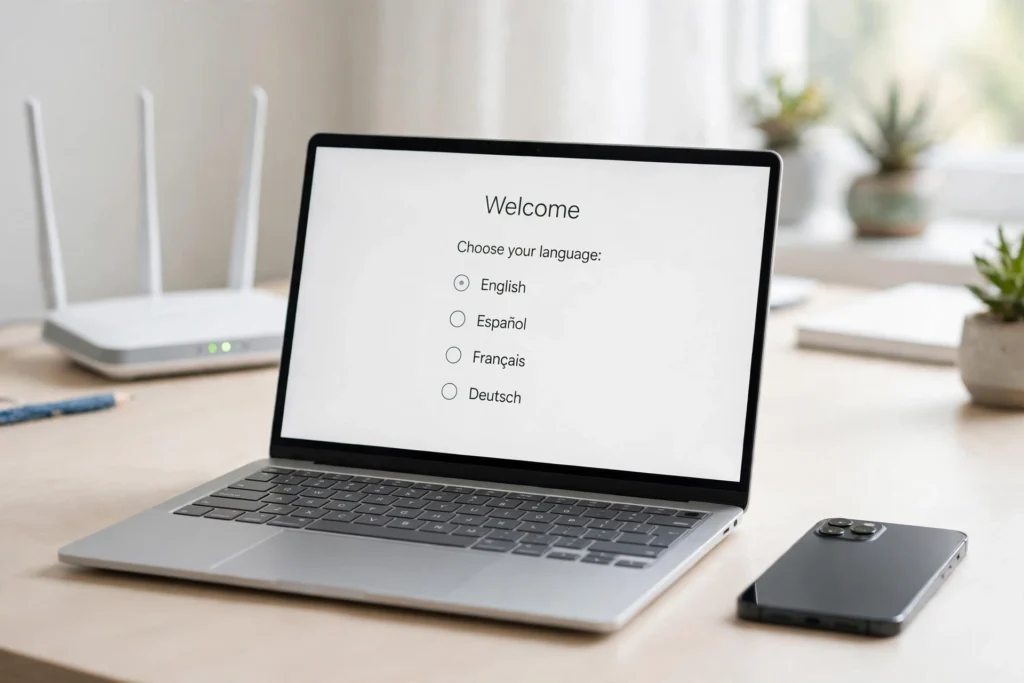
- Press the power button. A welcome message appears (Google, November 2026).
- Select your language and region. Follow the on-screen instructions to pick both (Google, November 2026).
- Choose Quick Start or Skip. Select “Set up using another device” to scan the QR code with your phone, or select Skip to set it up by hand (Google, November 2026).
- Connect to Wi-Fi. Pick your network from the list and enter the password. Networks that need a password show a lock icon (Google, November 2026).
- Choose who will use the device. Pick “For myself” for personal use, or “For my child” to set up a child account with parental controls (Google, November 2026).
- Accept the Google terms of service and privacy policy. Read them and accept to continue (Google, November 2026).
- Sign in with your Google Account. Enter your Google Account email address and password. You can create an account during setup if you do not have one (Google, November 2026).
- Set up security. Choose face unlock, fingerprint unlock, a PIN, or a pattern to log into the device (Google, November 2026; Dell, November 10, 2026).
- Customize Google services. Accept the privacy policy and customize your Google services, then follow the on-screen steps to personalize your apps, set up AI features, configure Quick Share, and adjust additional settings (Google, November 2026).
That is the whole flow. Googlebook OS is based on Android and combines Gemini intelligence with your Android device, so the setup feels much like setting up an Android phone, according to Dell (November 10, 2026). If you want to understand the system you just set up, read our Googlebook OS explained guide.
How to set up a Googlebook for your child
Set up a child account during the first setup, not after it. At the “who will use the device” step, choose “For my child” instead of “For myself”, and Google sets up a child account with parental controls (Google, November 2026).
That choice is the only child-specific step Google’s official setup page documents. We do not add extra parental control steps here, because we could not verify them from a named source. If you already bought the laptop for yourself and want to add a child later, Acer says you can add additional users or guest profiles after the initial setup, keeping each person’s information separate (Acer, updated November 4, 2026).
How to move your files from Windows or Mac
Your files move in two ways, and Acer documents both. Cloud syncing is the easiest if you already use Google services. A USB flash drive works if you prefer to copy files by hand. Either way, plan the move before you wipe or sell the old computer.
Cloud syncing (Acer, updated November 4, 2026):
- On your old Windows PC or Mac, open Google Chrome, sign in, and turn on sync for bookmarks, passwords, and settings.
- Download and install Drive for Desktop on your old computer. Choose the folders, photos, and videos you want to back up to Google Drive and Google Photos, then wait for the first sync to finish.
- Unbox your new Googlebook and sign in with the same Google Account. Your synced browser data, files, and media appear automatically.
Physical transfer with a USB flash drive (Acer, updated November 4, 2026):
- Connect an external hard drive or USB flash drive to your old PC or Mac, copy the files you want onto the drive, and safely eject it.
- Plug the drive into a USB port on your Googlebook.
- Open the Files app and select the external drive from the left menu.
- Highlight the files or folders you want, choose Copy, open your destination folder such as My files or Downloads, and select Paste.
- Click the Eject icon next to the external drive in the Files app menu before you disconnect it.
| What transfers | How |
|---|---|
| Documents, spreadsheets, presentations, PDFs, and text files | To Google Drive, by Drive for Desktop or USB transfer |
| Photos and videos | To Google Photos, by Drive for Desktop or USB transfer |
| Music | To YouTube Music, which accepts up to 100,000 uploaded files at no extra cost and needs no subscription |
| Bookmarks, passwords, and browser settings | By Chrome sync on the old computer before you switch |
Source: Acer Community, “How to Set Up Your Acer Googlebook”, updated November 4, 2026.
What does not transfer: installed Windows or Mac desktop applications, old system settings and specialized files such as Publisher files, and local profiles and passwords that were not synced to a Google Account. Windows and Mac desktop executable software (.exe and .dmg files) cannot be directly transferred or run natively on a Googlebook (Acer, updated November 4, 2026). Check the app you need in the Google Play Store before you rely on it, since Googlebook OS runs Android apps natively, per Dell (November 10, 2026).
What to do after setup: first checks
Once the welcome flow finishes, run three quick checks before you start working.
- Check for a software update. Googlebook OS gives notifications when updates are available. You can also check by hand: open the Settings app and go to System, Software Updates, System Update. If your device needs an update, follow the on-screen instructions (Dell, November 10, 2026).
- Confirm Wi-Fi is saved. After you connect, the network is saved, and the device connects automatically when it is nearby and Wi-Fi is on (Google, November 2026). To switch networks later, open Settings, Network and internet, Internet, or use Quick Settings at the top right and select Wi-Fi, then Internet (Google, November 2026).
- Know that setup needed the internet, but daily use does not always. Setup requires an internet connection, but many Googlebook tasks work offline once files are downloaded. See our guide to whether a Googlebook works offline for what works without Wi-Fi.
Troubleshooting: if setup stalls
Only use the fixes below. Each one comes from a named source. We do not list Chromebook fixes such as Powerwash or recovery utilities here, because no Googlebook source we checked documents them for Googlebook OS.
The first update seems to take forever. Google says the first setup may need a software update that can take around 15 minutes. Keep the laptop plugged into its charger and wait. Do not force it off during the update (Google, November 2026).
Quick Start will not start. Acer says your other device must be nearby, Bluetooth must be on, and you must have a Wi-Fi connection. Check all three, then try scanning the QR code again. If you do not want to use a phone at all, select Skip and set the laptop up by hand (Acer, updated November 4, 2026).
Wi-Fi will not connect. Open the Settings app, select Network and internet, then Internet, and pick your network from the list. Networks that need a password show a lock icon. You can also connect from Quick Settings: at the top right, select Wi-Fi, then Internet, then pick a network (Google, November 2026). If the password is wrong, the lock icon network will not connect, so retype it carefully.
You signed in with the wrong account, or setup is badly stuck. As a last resort, Dell documents a factory reset: open the Settings app, select System, Reset options, Erase all data (factory reset), then select Erase all data, and after the device resets, select Restart. Before you reset, be sure you know your Google Account username and password, back up your data in the Accounts and backup section of Settings, and charge the device (Dell, November 10, 2026). A reset erases local data, so try the fixes above first.
You do not have a Google Account and do not want one. There is no workaround. Acer states that while there are three setup paths (Quick Start with Android, Quick Start with iPhone or iPad, or starting fresh), a Google Account is strictly required for setup. There is no offline or local account option (Acer, updated November 4, 2026).
FAQ
Do I need a Google Account to set up a Googlebook?
Yes. Google says you need an active Google Account to sign in and personalize your Googlebook, and you can create one during setup if needed. Acer is explicit that there is no offline or local account option: a Google Account is strictly required. Without one, setup cannot finish.
Can I set up a Googlebook without Wi-Fi?
No. Google says your device needs to connect to the internet to complete setup, so have your Wi-Fi network name and password ready before you start. Quick Start also needs a Wi-Fi connection, per Acer. Once setup is done, many tasks work offline, but the setup itself cannot run without internet.
How long does Googlebook setup take?
Dell says getting started takes only a few minutes: turn it on, follow the on-screen instructions, connect to Wi-Fi, sign in, set up security, and personalize. The exception is the first software update, which Google says can take around 15 minutes. Budget about 20 minutes in total, and keep the laptop plugged in.
Can I move my files from a Windows PC or Mac to a Googlebook?
Yes. Acer documents two ways. For cloud syncing, turn on Chrome sync on your old computer and install Drive for Desktop to back up folders, photos, and videos to Google Drive and Google Photos. For a physical transfer, copy files to a USB flash drive, plug it into the Googlebook, and paste them in the Files app.
Can I set up a Googlebook for my child?
Yes. During setup, when Google asks who will use the device, choose “For my child” instead of “For myself”, and it sets up a child account with parental controls. Acer adds that you can also add additional users or guest profiles after the initial setup, keeping each person’s information separate.
What if setup stalls on the first software update?
Wait first. Google says the first setup may need a software update that can take around 15 minutes, so keep the laptop plugged in and let it finish. If Quick Start will not start, check that your phone is nearby, Bluetooth is on, and Wi-Fi is connected, per Acer. Dell documents a factory reset as a last resort.
Conclusion
Setting up a Googlebook is a short job: charge it, pick Quick Start or manual setup, connect to Wi-Fi, sign in with your Google Account, and set up your security. The only slow part is the first software update, which Google says can take around 15 minutes. Move your files by cloud sync or USB drive, remember that Windows and Mac programs do not transfer, and run the update check in Settings once you are in. If you have not chosen a model yet, compare them in our Googlebook specs guide.
Related guides: Googlebook OS Explained | Does Googlebook Work Offline? | Googlebook specs: all 5 models compared
Sources:
- Google, “Set up your Googlebook”, Googlebook Help Center, accessed November 24, 2026: https://support.google.com/googlebook/answer/18072515?hl=en
- Google, “Connect to Wi-Fi on your Googlebook”, Googlebook Help Center, accessed November 24, 2026: https://support.google.com/googlebook/answer/17025087?hl=en
- Acer Community, “How to Set Up Your Acer Googlebook”, published October 9, 2026, updated November 4, 2026: https://community.acer.com/en/en/kb/articles/20137-how-to-set-up-your-acer-googlebook
- Dell, “Googlebook OS Support”, published November 10, 2026: https://www.dell.com/support/contents/en-us/article/product-support/self-support-knowledgebase/operating-systems/google-operating-systems/googlebook-os-support
By Joshe Martin. Joshe Martin covers Googlebook and Chromebook laptops for ailaptopguide.com, focusing on prices, specs, and practical buying advice. We have not tested any Googlebook. This guide is based on official documentation from Google, Acer, and Dell, with every step credited to a named source and date.
