
Magic Pointer vs Click to Do
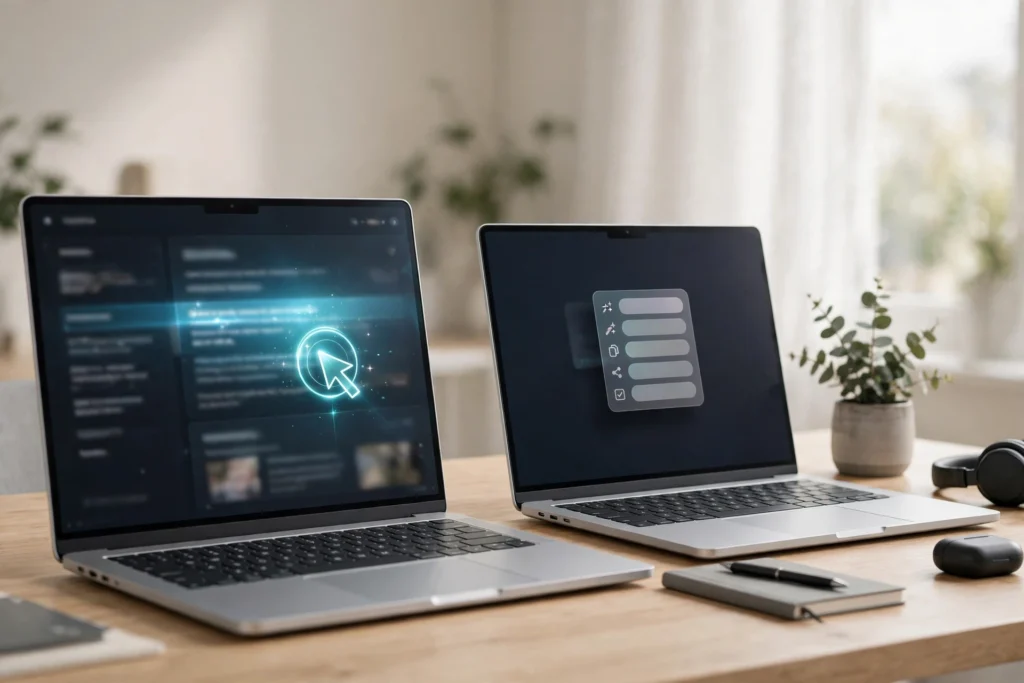
Magic Pointer turns your Googlebook cursor into a Gemini prompt box, while Click to Do turns a Copilot+ PC screen into a menu of quick actions. The difference is not the idea, it is the assistant, the trigger and what each one can do with what it finds.
Key takeaways
- Magic Pointer is Google’s Googlebook feature. Wiggle the cursor or press Meta/Windows key + G, select up to 10 items, and Gemini suggests up to 3 actions.
- Click to Do is Microsoft’s Copilot+ PC feature. Press Windows key + Q or Windows key + mouse click for quick actions on selected text or images.
- Magic Pointer stays free forever after the 12-month Google AI Pro trial ends, Google’s Alexander Kuscher confirmed.
- Click to Do is stronger for editing text and images on the spot. Magic Pointer is stronger for open-ended questions, such as comparing two images.
- Both analyse your screen on the device and share data only when you trigger an action. Neither records your screen continuously.
- Neither runs on the other side’s laptop: Magic Pointer needs a Googlebook; Click to Do needs a Copilot+ PC.
How we wrote this. We have not tested either feature ourselves. This comparison is built from Google’s blog post of May 12, 2026, the Googlebook Help Center, Microsoft’s Click to Do support page and Microsoft Learn, plus named reporting. Checked November 20, 2026.
Table of Contents
- What is Magic Pointer?
- What is Click to Do?
- Magic Pointer vs Click to Do at a glance
- How you trigger each one
- What each one can do with text
- What each one can do with images
- Privacy: what stays on your device
- Cost and subscriptions
- Which laptops can run each one
- Which should you choose?
- FAQ
- Conclusion
What is Magic Pointer?
Magic Pointer is the AI cursor on Googlebook, Google’s new category of Gemini-powered laptops. Google announced it on May 12, 2026, in the blog post that introduced Googlebook, and says it built the feature with the Google DeepMind team. Wiggle your cursor and Gemini offers quick, contextual suggestions for whatever you point at. Google’s examples: point at a date in an email to set up a meeting, or select two images to visualise them together.
In practice, it works like this, according to the Googlebook Help Center. Turn it on from the status bar or Settings, then select text, an image or a file: one item by hovering and clicking, several with Ctrl, or a custom area by dragging a box. You can select up to 10 items at a time. Then type a prompt or pick a suggested one, and Gemini answers, compares or creates. An Android Authority teardown of the pre-release app found Gemini is instructed to generate up to 3 suggestion chips, plus the Meta + G shortcut and wiggle sensitivity settings. Read our Googlebook Gemini features guide for the other Gemini tools.
What is Click to Do?
Click to Do is Microsoft’s screen AI feature for Windows 11 on Copilot+ PCs. Microsoft describes it plainly on its support page: Click to Do helps you get things done faster by identifying text and images on your screen that you can take actions with. You launch it, it analyses what is on screen, and you choose the text or image you want to act on. Click to Do does not open a chatbot prompt box by default. It opens a menu of fixed, practical actions: copy, search the web, summarise, rewrite, blur a background, erase an object. If you want a free-form question, you choose Ask Copilot, and the selected content is handed to Copilot with your prompt.
Click to Do is the older, more proven of the two. Microsoft introduced the Copilot+ PC category in May 2024, with the first models on sale that June, and it has been shipping and updated since then. The text actions run on a small language model called Phi Silica, which Microsoft says ships inbox with Windows on Copilot+ PCs and runs locally on the NPU.
Magic Pointer vs Click to Do at a glance
| Feature | Magic Pointer | Click to Do |
|---|---|---|
| Platform | Googlebook laptops only | Windows 11 Copilot+ PCs |
| AI assistant | Gemini | Copilot, plus on-device Phi Silica |
| Trigger | Wiggle the cursor, or press Meta/Windows key + G | Windows key + mouse click, or Windows key + Q |
| What you select | Up to 10 items: text, images, files | Text or an image on screen |
| Text actions | Ask, compare or create with Gemini; up to 3 suggested prompts | Copy, Search the web, Summarize, Rewrite, Draft in Word |
| Image actions | Ask about images, compare two images, visualise items together | Copy, Save as, Visual search, Blur background, Erase objects, Remove background |
| Privacy | On-device recognition; cloud only on your action | On-device analysis; content shared only on your action |
| Cost | Free forever; Google AI Pro trial is extra | No extra fee; some Microsoft 365 actions need a licence |
| Hardware | A Googlebook; 45 TOPS NPU baseline | 40 TOPS NPU, 16 GB RAM, 8 logical processors, 256 GB storage |
| Languages | English, German, French, French Canadian | Intelligent text actions need English; other features vary by region |
Sources: Google blog, May 12, 2026; Googlebook Help Center; Chrome Unboxed, September 26, 2026; Android Authority teardown; Microsoft Support; Microsoft Learn; Windows Central; Notebookcheck, September 2026.
How you trigger each one
To start Magic Pointer, wiggle your cursor or press Meta + G, which is the Windows key + G on a Googlebook keyboard. Some mice have a dedicated button, which you can assign in the mouse companion app, according to the Googlebook Help Center. Once it is open, select your items, type a prompt or pick a suggested one, and Gemini responds. To leave, press Esc, click in the dimmed area, or repeat your launch method.
To start Click to Do, press Windows key + Q, or hold the Windows key and click the mouse. You can also enter it with a right swipe on a touch PC, from the Snipping Tool menu, or by searching for Click to Do in Windows Search. Click to Do is enabled by default on Copilot+ PCs and cannot be removed, only disabled in Settings under Privacy and security, then Click to Do.
What each one can do with text
Text is where Click to Do is stronger, because its actions are specific, finished and local. Magic Pointer is more open-ended, because it hands your text to Gemini and lets you ask anything. With Magic Pointer, you select text and ask Gemini about it: what a passage means, how two pieces of text compare, or something new created from them. Gemini suggests up to 3 prompts based on what you selected, so you often do not need to type anything. The Google blog’s example is pointing at a date in an email to set up a meeting.
With Click to Do, the text menu is longer and more practical. For any selected text you get Copy, Open with (for example Notepad) and Search the web (using Edge and Bing). If the text is an email address, you also get Send email, Send a message with Teams and Schedule a meeting with Teams. The intelligent actions go further, but they need three things: English as the default language, at least 10 words selected, and a Microsoft account or Microsoft Entra sign-in. With those met, you get Summarize, Create a bulleted list, Rewrite in Casual, Formal or Refine tones, Draft with Copilot in Word, Practice in Reading Coach and Read with Immersive Reader. So the verdict is split: to clean up or rephrase a paragraph, Click to Do does it in one click; to ask an open question or compare two documents, Magic Pointer is the better fit.
What each one can do with images
For images, the verdict flips for practical edits, but Magic Pointer still wins for questions. Magic Pointer’s strength is comparison and understanding. Google’s launch example is selecting two images, your living room and a new couch, to visualise them together. PCWorld adds you can circle an image and ask Gemini “What is this?” You can also compare several images at once, which Click to Do cannot do.
Click to Do’s strength is doing things to the picture. Select an image and you get Copy, Save as, Share and Open with (Photos, Snipping Tool or Paint), plus Visual search with Bing, Blur background with Photos, Erase objects with Photos and Remove background with Paint. One gap: in the European Economic Area, Microsoft says Visual search with Bing, Blur, Remove and Erase are currently not available, and neither is Ask Copilot.
Privacy: what stays on your device
Both analyse on the device first and send data to the cloud only when you ask for something. For Magic Pointer, Google Senior Director Alexander Kuscher said on the Android Faithful podcast, reported by Chrome Unboxed on September 26, 2026, that recognising elements on your display, such as a block of text being an email, is handled entirely on-device using local hardware acceleration. Data is only sent to cloud Gemini models when you explicitly trigger an action.
For Click to Do, Microsoft’s support page says the same thing in its own words. Screenshot analysis is always performed locally on your device. Click to Do only identifies text and images, not their content, and it does not analyse minimised apps that are not on your screen. Content is only shared if you choose an action like Search the web. The intelligent text actions run on Phi Silica, locally on the NPU. On both sides, web search, Ask Copilot and advanced Gemini actions send your selected content to an online provider.
Cost and subscriptions
Magic Pointer is free forever. That is the direct answer Google gave through Alexander Kuscher, reported by Chrome Unboxed and GbookHub in September 2026: Magic Pointer, Rambler, Create My Widget and system-level smart assistance are built into Googlebook OS and remain fully functional after month 13 without paying anything. The 12-month Google AI Pro subscription bundled with every Googlebook is an additive layer, not a prerequisite. It adds expanded Gemini access and 5 TB of storage; only deep cloud-only Gemini app features need a subscription after the trial.
HP values the 12 months of Google AI Pro at $239.88, renewing at $19.99 per month after the trial unless cancelled. Click to Do has no equivalent trial: it is included with a Copilot+ PC at no extra charge. Ask Copilot needs Copilot, and the work version needs a Microsoft 365 licence. The core quick actions need no subscription at all.
Which laptops can run each one
Neither feature is available on a normal laptop. Both are locked to a hardware category, so you buy the laptop to get the feature. Magic Pointer runs only on Googlebook devices in countries where Gemini is available. The Help Center lists four supported languages: English, German, French and French Canadian. Every Googlebook shares a baseline of 16 GB of RAM and a 45 TOPS NPU, according to Notebookcheck’s September 2026 pre-order report. Googlebooks start at $899 in the US, from Acer, ASUS, Dell, HP and Lenovo. Compare the five models in our Googlebook specs guide.
Click to Do runs only on a Copilot+ PC or an eligible Cloud PC. Microsoft’s requirements are exact: a 40 TOPS NPU, 16 GB of RAM, 8 logical processors and 256 GB of storage. The chip families Microsoft currently names are the Qualcomm Snapdragon X series, AMD Ryzen AI 300 and 400 series, and Intel Core Ultra 200V and 300V series. Language limits differ too: Magic Pointer supports four languages, while Click to Do’s intelligent text actions need English, with cutbacks in the European Economic Area and China.
Which should you choose?
Choose Magic Pointer, and a Googlebook, if: you live in Gemini, you want to ask open-ended questions about what is on your screen, you compare images or documents side by side, or you want an AI feature that is guaranteed free for the life of the laptop.
Choose Click to Do, and a Copilot+ PC, if: you live in Windows and Microsoft 365, you rewrite and summarise text every day, you schedule meetings and send Teams messages from email addresses on screen, or you need quick image edits like blur background and erase objects.
Wait if: your language is not supported by Magic Pointer, you live in the EEA and want Click to Do’s full image menu, or you already own a good laptop and neither feature justifies a new purchase.
FAQ
Is Magic Pointer free after the Google AI Pro trial ends?
Yes. Google Senior Director Alexander Kuscher confirmed on the Android Faithful podcast, reported by Chrome Unboxed on September 26, 2026, that Magic Pointer is built into Googlebook OS and remains fully functional after the 12-month Google AI Pro trial ends.
Does Click to Do work on any Windows 11 laptop?
No. Click to Do works only on a Copilot+ PC or an eligible Cloud PC. Microsoft requires a 40 TOPS NPU, 16 GB of RAM, 8 logical processors and 256 GB of storage. A standard Windows 11 laptop without that hardware cannot run it.
Which is better for writing and editing text?
Click to Do, for most writing tasks. Its Summarize, bulleted list and three Rewrite options run locally on the Phi Silica model and finish the edit in one click. Magic Pointer is better for open questions about the text. Click to Do’s intelligent actions need 10 or more words selected, English and a Microsoft account sign-in.
Which is better for images?
It depends on the job. Click to Do is better for practical edits: blur background, erase objects, remove background and visual search, all finished inside Photos or Paint. Magic Pointer is better for understanding images: asking what something is, comparing two images, or visualising items together.
Can I use Magic Pointer on a Windows laptop?
No, not as the Googlebook feature. Magic Pointer is built into Googlebook OS and runs only on Googlebook laptops. The same idea is coming to Gemini in Chrome, where you can point at parts of a webpage and ask questions, but that is a browser feature.
Can I use Click to Do on a Googlebook?
No. Click to Do is a Windows 11 feature for Copilot+ PCs, and Googlebooks run Googlebook OS, which is based on Android. The two features belong to different operating systems, so pick the laptop first, then compare the AI features.
Conclusion
Magic Pointer and Click to Do start from the same idea, that your screen should be something you act on, not just something you look at. Magic Pointer is a question box at your cursor, powered by Gemini, best for asking, comparing and creating. Click to Do is a menu of finished actions, powered by Copilot and the local Phi Silica model, best for editing text, handling email addresses and fixing images. Choose the laptop that fits your work, and the right screen AI comes with it.
Related guides: Googlebook OS Explained, Googlebook Gemini Features Explained, Googlebook Specs: All 5 Models Compared
Sources: Google, Introducing Googlebook, designed for Gemini Intelligence, May 12, 2026, https://blog.google/products-and-platforms/platforms/android/meet-googlebook/; Googlebook Help Center, Get answers and insights with Magic Pointer from Gemini, https://support.google.com/googlebook/answer/18290162; Chrome Unboxed, Google clarifies how Magic Pointer and Rambler work on Googlebook without subscriptions, September 26, 2026, https://chromeunboxed.com/google-clarifies-how-magic-pointer-and-rambler-work-on-googlebook-without-subscriptions/; Android Authority, Magic Pointer teardown reveals the Gemini prompts powering it, https://www.androidauthority.com/magic-pointer-teardown-3687510/; PCWorld, The Googlebook’s most compelling AI feature is not even AI, https://www.pcworld.com/article/3238878/the-googlebooks-most-compelling-ai-feature-isnt-even-ai.html; Digital Trends, Google is redefining the cursor for computers, https://www.digitaltrends.com/cool-tech/google-is-redefining-the-cursor-for-computers-and-its-ai-charged-future-looks-ridiculous/; Microsoft Support, Click to Do: do more with what is on your screen, https://support.microsoft.com/en-gb/windows/ai/ai-features/click-to-do-do-more-with-what-s-on-your-screen; Microsoft Learn, Click to Do overview, https://learn.microsoft.com/en-us/windows/apps/develop/windows-integration/click-to-do; Windows Central, How to use Click to Do on Windows 11 with a Copilot+ PC, https://www.windowscentral.com/software-apps/windows-11/what-is-click-to-do-and-how-do-you-get-started-ai-actions-for-windows-11-explained; Notebookcheck, Googlebooks now up for pre-order, September 2026, https://www.notebookcheck.net/Googlebooks-now-up-for-pre-order-powered-by-Intel-Panther-Lake-and-Snapdragon-X-Elite-chips-starting-899.1404713.0.html; HP, HP Googlebook, https://www.hp.com/us-en/shop/mdp/creative/hp-googlebook-3074457345618156670–1.
By Joshe Martin. Joshe Martin covers Googlebook and Chromebook laptops for ailaptopguide.com. We have not tested either feature ourselves. Every fact is credited to a named source and date. Prices and offers are launch terms from the sources listed and may change; check the official listing before you buy.

Pingback: What Is Rambler Googlebook? Explained