
What Is Rambler on Googlebook?
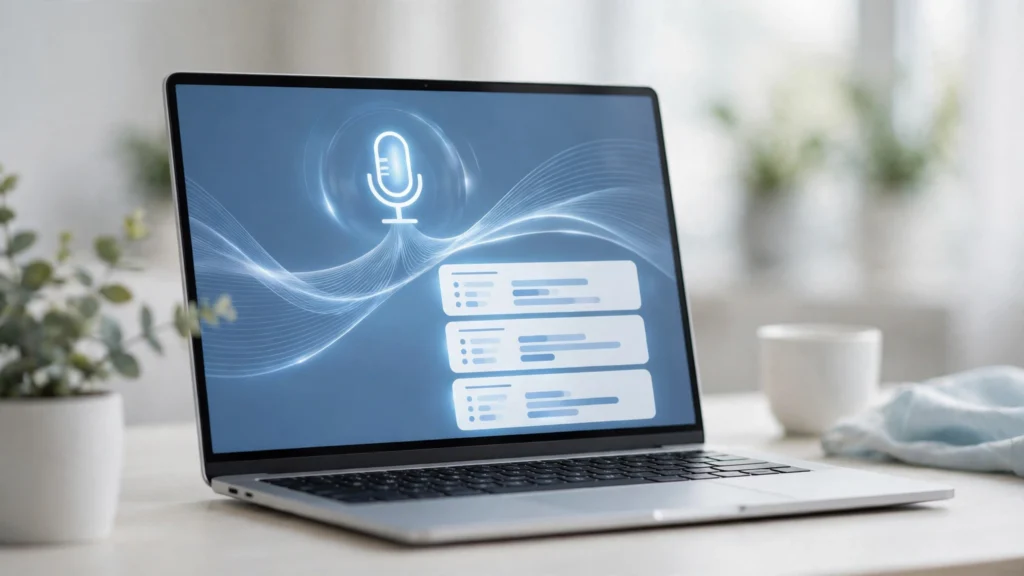
Rambler is Googlebook’s Gemini-powered voice dictation feature, built into Gboard. Instead of transcribing every word you say, including the ums, stutters and false starts, it understands what you meant and returns clean, structured text with proper punctuation, headers and bullet points. It works in any text field and stays free for the life of the laptop.
Key takeaways
- Rambler is a Gemini-powered text input feature in Gboard on Googlebook. It turns natural, rambling speech into clean, well-structured written text.
- Press Alt + d or the Dictation key in any text field, talk naturally, and Rambler removes filler words, fixes grammar and punctuation, and organises your words into headers and bullet points.
- You can also edit by voice: select text and say “Make this sound more professional” or “Change blue to green”.
- Rambler supports 12 languages, including English, Spanish, Hindi, Arabic and Japanese, with mid-sentence switching.
- Rambler is free forever: it keeps working after the 12-month Google AI Pro trial ends, because it is built into Googlebook OS.
- Rambler needs an internet connection, Gboard as your default keyboard, and microphone permission. Your voice is processed temporarily and deleted immediately after delivery.
How we wrote this. We have not tested Rambler ourselves. This guide is built from the Googlebook Help Center, Google’s blog post of September 21, 2026, Chrome Unboxed reporting of September 26 and October 7, 2026, and the May 12, 2026 announcement coverage. Checked November 21, 2026.
Table of Contents
- What is Rambler on Googlebook?
- Rambler vs standard voice typing
- How to set up Rambler on your Googlebook
- How to use Rambler
- Editing and rewriting with your voice
- Which languages does Rambler support?
- Privacy: what happens to your voice
- Is Rambler free?
- Limits and things to watch
- Who should use Rambler?
- FAQ
- Conclusion
What is Rambler on Googlebook?
Rambler is a text input feature powered by Gemini in Gboard, Google’s keyboard app. Unlike traditional voice typing, which transcribes word for word, Rambler transforms natural, spoken thought into clean, well-structured written text. That is the Googlebook Help Center’s definition.
Google announced Rambler on May 12, 2026, at its Android Show: I/O Edition event, as part of Gemini Intelligence. It arrived on laptops with the Googlebook launch on September 21, 2026, and the first Googlebooks went on sale in the US on October 4, 2026, starting at $899.
The name tells you what it does. People ramble. They hesitate, repeat themselves, say “um” and “like”, and correct themselves out loud. Standard dictation captures all of that, and the cleanup takes longer than typing would have. Rambler listens for intent, not just sounds, and hands back text that reads as if you had written it carefully. Google’s example is drafting team meeting notes: you let your stream of consciousness fly, and Rambler cleans up the errors and organises the action items.
Robby Payne of Chrome Unboxed, who used Rambler on a Googlebook and a Pixel 11 Pro XL in October 2026, called it the biggest speech-to-text leap he could remember in over a decade. One thing Rambler is not: a chatbot or a separate app. It lives inside Gboard and appears only when you are typing, in any text field, in any app. Read our Googlebook Gemini features guide to see how it fits alongside Magic Pointer and the other Gemini tools.
Rambler vs standard voice typing
Standard voice typing writes down exactly what it hears. Rambler writes down what you meant.
| What happens | Standard voice typing | Rambler |
|---|---|---|
| Filler words (um, uh, like) | Transcribed as spoken | Removed automatically |
| Mid-sentence corrections | Both versions appear | Only the correction appears |
| Punctuation | You say punctuation out loud | Added automatically from context |
| Structure | One long block of text | Headers and bullets |
| Rewrites and tone changes | Not possible by voice | Ask in plain language |
| Editing existing text | You retype it yourself | Select text and correct it by voice |
| Internet connection | Often works offline | Required for all Rambler features |
Sources: Googlebook Help Center; Google blog, September 21, 2026; TechCrunch, May 12, 2026; Android Authority, May 2026; Chrome Unboxed, October 7, 2026.
With standard dictation, you talk like a news anchor reading a teleprompter, planning each sentence and saying every comma out loud. With Rambler, you talk the way you talk to a colleague. The trade-off is that Rambler interprets, so it can occasionally interpret wrong. Google says so in the Help Center: double-check it before you send.
How to set up Rambler on your Googlebook
Rambler is the default dictation type on a Googlebook, so you may not need to set anything up. If you changed your dictation type, setup takes about a minute and follows the path below, from the Googlebook Help Center.
Before you begin, check four requirements: a Googlebook, Gboard as your default keyboard app, microphone permission for Gboard, and an active internet connection. The internet requirement surprises some people, because early hands-on coverage described Rambler as powered by on-device Gemini. The Help Center is explicit, though: an active internet connection is required for all Rambler features.
To set up Rambler:
- Open your Googlebook’s Settings app.
- Select Device and accessories, then Keyboard, then Keyboard apps. If Gboard is off, turn it on.
- Select Gboard, then Voice typing.
- Turn on Voice typing.
- Under Dictation type, select Rambler.
The first time you use Rambler, a pop-up appears. Select Get started to turn it on. If you select No thanks, the system defaults to normal dictation.
How to use Rambler
Put your cursor in a text field, press a key, and talk. You do not need to memorise commands, and you do not need to pause for commas or periods.
To dictate with Rambler:
- Select a text field.
- Press Alt + d or the Dictation key, or press the Quick Insert key (or Alt + i) and select the Microphone icon.
- Speak naturally. The Rambler toolbar appears to show it is listening.
- To pause or stop, press Alt + d or the Dictation key again.
- Your cleaned-up text appears in the text area.
What Rambler does depends on whether you have text selected. Without text selected, Rambler attaches new text or edits a previous session. With text selected, Rambler transforms or replaces the selected text. That is the key to using it as an editor as well as a dictation tool, covered in the next section.
If the result is not what you wanted, the Rambler toolbar gives you two options. Select Undo to delete the inserted text and start again. Or select Full transcript to insert the complete, unedited transcript instead. Full transcript appears only when you write new text, not when you edit existing text.
Editing and rewriting with your voice
Rambler is not only for writing new text. It can edit, polish or rewrite text that is already in the text area, using natural voice commands. Speak naturally, and Rambler works out what you want.
For rewrites, ask for a style or tone change in plain language. The Help Center gives two examples: “Make this sound more professional” and “Make this shorter and more direct”. You can add the request to the end of your voice input or give it as a separate second command. For emoji, ask for a specific one, such as “Add a sushi emoji”, or let Rambler choose. For precise edits, say things like “Change blue to green”.
| What you want | What to say | What Rambler does |
|---|---|---|
| More professional tone | “Make this sound more professional.” | Formal rewrite |
| Shorter text | “Make this shorter and more direct.” | Shorter, tighter text |
| A specific emoji | “Add a sushi emoji.” | Inserts that emoji |
Source: Googlebook Help Center, Use Rambler on Googlebook.
The honest limit here is accuracy. Rambler interprets intent, and interpretation can go wrong, especially with names, numbers and unusual words. Double-check the output before you send it, particularly in work emails where a wrong word changes the meaning.
Which languages does Rambler support?
Rambler has been tuned to work with 12 languages, according to the Googlebook Help Center: Arabic, English, French, German, Hindi and other supported Indian languages, Italian, Japanese, Korean, Portuguese, Russian and Spanish.
The more interesting part is how it handles more than one language at a time. Rambler uses a multilingual Gemini model, so you can move from one language to another in the middle of a sentence and it understands the change. Google’s announcement put it this way: whether you are blending English with Hindi or any other combination, Rambler understands the context and the nuance. Code-switching is how many multilingual speakers actually talk, and most Western dictation apps have been slow to support it.
Magic Pointer, Googlebook’s other headline AI feature, supports only four languages: English, German, French and French Canadian. See our Magic Pointer vs Click to Do comparison and our Googlebook OS Explained guide.
Privacy: what happens to your voice
Your voice is processed temporarily and then deleted. When you use Rambler, your text, audio input and corrections are temporarily processed by Google. They are never saved, stored or shared, and they are deleted immediately after your text is delivered.
Two sources disagree here, and the difference matters. Chrome Unboxed’s hands-on piece from October 7, 2026 describes Rambler as powered by Google’s on-device Gemini intelligence. The Help Center, however, says an active internet connection is required for all Rambler features. The Help Center is the official documentation and the more specific of the two, so this guide treats Rambler as cloud-assisted, not entirely on-device.
On safety, Rambler refuses to rewrite, polish or generate severe policy harms, including child sexual abuse material, harassment, hate speech and phishing. Instead, it displays a safety rejection message.
Is Rambler free?
Yes. Rambler is free forever. Google confirmed that Rambler, Magic Pointer, Create My Widget and system-level smart assistance are built into Googlebook OS and remain fully functional after the 12-month Google AI Pro trial ends.
The confirmation came from Alexander Kuscher, Google’s Senior Director of Product for Laptops and Tablets, speaking on the Android Faithful podcast and reported by Chrome Unboxed on September 26, 2026. Kuscher’s point was that Google AI Pro is an additive layer on top of the standard Googlebook experience, not a prerequisite for using the laptop’s core features. Every Googlebook includes 12 months of Google AI Pro, valued at roughly $240, with 5 TB of cloud storage. When month 13 arrives, the subscription extras go away unless you pay, but Rambler keeps working.
What the subscription buys, after the trial, is access to deep cloud-only capabilities inside the standalone Gemini app, such as large-context document uploads, multi-step agentic workflows and top-tier media generation. Those are different features from Rambler. One detail is still open: the Help Center says Rambler is subject to usage limits, but Google gives no numbers. For normal daily use, there is no sign of a practical limit.
Limits and things to watch
Rambler has limits worth knowing. First, the internet requirement. The Help Center requires an active internet connection for all Rambler features, so it will not help you on a plane without Wi-Fi or in a dead zone. Second, the keyboard requirement. Rambler lives in Gboard, so Gboard must be your default keyboard app, and it needs microphone permission. Third, accuracy. Rambler can make mistakes, and Google says so directly. It interprets what you meant, so names, numbers and technical terms are the most likely to come back wrong. Fourth, the unpublished usage limit: Google gives no numbers. Fifth, availability. Rambler needs a Googlebook. It does not run on a Chromebook, a Windows laptop or a Mac. The same Gboard feature exists on Android phones, where Google announced it for premium models such as the Pixel 10 and the Samsung Galaxy S26 series. Compare the five models in our Googlebook specs guide if you are deciding which one to buy.
Who should use Rambler?
Use Rambler if: you write a lot of emails or messages every day, you think faster than you type, you draft meeting notes, you switch between languages mid-sentence, or you find typing tiring. For these people, Rambler is the most practical AI feature on a Googlebook.
Keep standard voice typing, or type by hand, if: you need an exact word-for-word transcript, you often work without an internet connection, you do not want your voice processed by Google at all, or you write in a language Rambler does not support. In those cases, Rambler’s interpretation is a drawback.
Try it first if: you are unsure whether dictation suits you. It costs nothing, it is already on the laptop, and you can switch back to normal dictation from the same settings page. Answer your next three emails by voice and see whether you reach for the keyboard again. One honest note: Rambler alone should not decide whether you buy a Googlebook.
FAQ
Is Rambler free after the Google AI Pro trial ends?
Yes. Google Senior Director Alexander Kuscher confirmed on the Android Faithful podcast, reported by Chrome Unboxed on September 26, 2026, that Rambler is built into Googlebook OS and remains fully functional after the 12-month trial ends. The subscription is an additive layer, not a prerequisite.
Does Rambler need an internet connection?
Yes. The Googlebook Help Center states that an active internet connection is required for all Rambler features, even though some hands-on coverage describes Rambler as powered by on-device Gemini. Follow the official documentation: Rambler needs to be online to work.
Does Rambler work on a Chromebook?
No. Rambler is part of Googlebook OS and Gboard on Googlebook laptops. It does not run on Chromebooks, Windows laptops or Macs. The same Gboard feature exists on Android phones, where Google announced it for premium models such as the Pixel 10 and the Samsung Galaxy S26 series.
Can Rambler edit text I already wrote?
Yes. Select the text, then speak your change in plain language. You can ask for rewrites such as “Make this sound more professional”, request emoji, or make precise edits such as “Change blue to green”. With text selected, Rambler transforms or replaces it; without a selection, it adds new text.
What languages does Rambler support?
Rambler supports 12 languages: Arabic, English, French, German, Hindi and other supported Indian languages, Italian, Japanese, Korean, Portuguese, Russian and Spanish. You can switch between supported languages in the middle of a sentence, and Rambler’s multilingual Gemini model follows the change in real time.
How do I turn Rambler on?
Open Settings, then Device and accessories, then Keyboard, then Keyboard apps, and make sure Gboard is on. Then select Gboard, then Voice typing, turn on Voice typing, and under Dictation type select Rambler. Press Alt + d or the Dictation key in any text field to start dictating.
Conclusion
Rambler is the least flashy of Googlebook’s AI features and the most likely to change how you work every day. It takes the way you actually talk, with all the hesitation and self-correction, and returns text you can send. It supports 12 languages, edits by voice, and is free for the life of the laptop. The only real catches are the internet requirement and the need to check its work before you send. If you own a Googlebook, turn it on and answer your next email with your voice.
Related guides: Googlebook OS Explained, Googlebook Gemini Features Explained, Magic Pointer vs Click to Do, Googlebook Specs: All 5 Models Compared
Sources: Googlebook Help Center, Use Rambler on Googlebook, https://support.google.com/googlebook/answer/18429213?hl=en; Google, Googlebook and on-device Gemini introduce a new way to work, Alexander Kuscher, September 21, 2026, https://blog.google/products-and-platforms/devices/googlebook/googlebook-built-in-intelligence/; Chrome Unboxed, Google clarifies how Magic Pointer and Rambler work on Googlebook without subscriptions, September 26, 2026, https://chromeunboxed.com/google-clarifies-how-magic-pointer-and-rambler-work-on-googlebook-without-subscriptions/; Chrome Unboxed, Googlebook’s ‘Rambler’ feature is the biggest speech-to-text upgrade I’ve ever used, Robby Payne, October 7, 2026, https://chromeunboxed.com/googlebooks-rambler-feature-is-the-biggest-speech-to-text-upgrade-ive-ever-used/; TechCrunch, Google adds Gemini-powered dictation to Gboard, which could be bad news for dictation startups, May 12, 2026, https://techcrunch.com/2026/05/12/google-adds-gemini-powered-dictation-to-gboard-which-could-be-bad-news-for-dictation-startups/; Android Authority, Gboard is learning to turn your rambling into polished text, May 2026, https://www.androidauthority.com/gboard-rambler-gemini-intelligence-3665653/; Android Police, Google’s next Gboard upgrade turns your rambling into something you can actually send, May 2026, https://www.androidpolice.com/gboard-voice-typing-ai/; Lilach Bullock, Googlebook: What Google’s Gemini Laptop Does (2026), updated around November 14, 2026, https://www.lilachbullock.com/googlebook/; Tom’s Guide, Googlebook pre-orders go live with 5 new laptops from $899 to $1,299, September 2026, https://www.tomsguide.com/computing/laptops/googlebook-pre-orders-go-live-with-5-new-laptops-from-usd899-to-usd1-299-heres-what-theyre-like-to-use.
By Joshe Martin. Joshe Martin covers Googlebook and Chromebook laptops for ailaptopguide.com. We have not tested Rambler ourselves. Every fact is credited to a named source and date. Prices and offers are launch terms from the sources listed and may change; check the official listing before you buy.
